

Guides
What DPI Does a Poster Need? Resolution Guide for A0 Printing

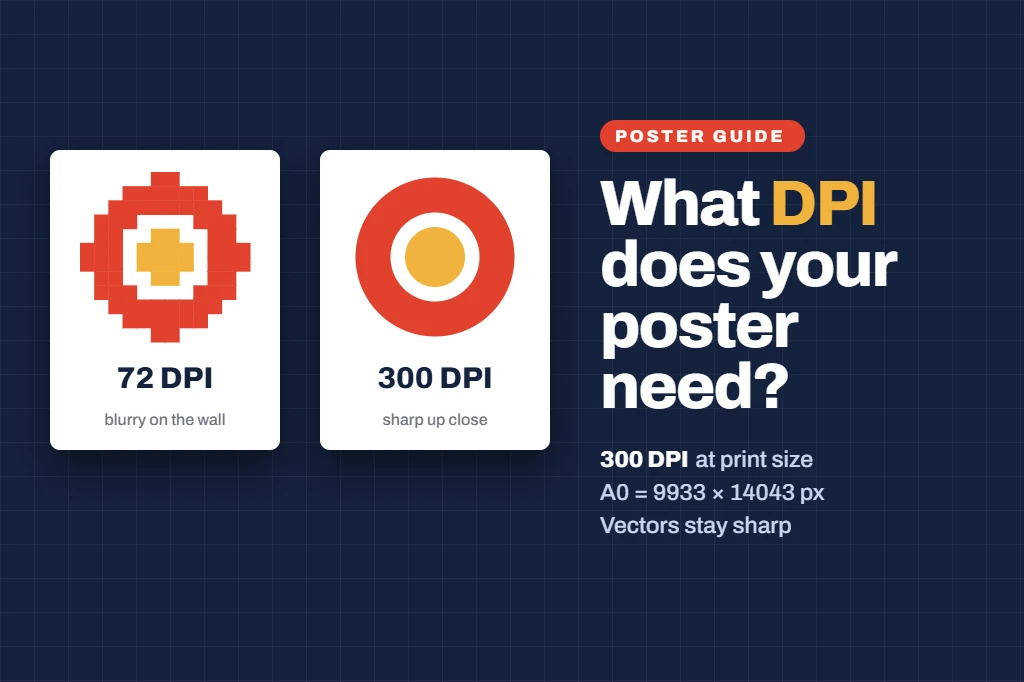
What DPI Does a Poster Need? Resolution Guide for A0 Printing
This guide is for anyone about to print a poster who wants every photo, chart and logo to look sharp on the wall. It gives you the pixel sizes you need, shows how to check your images, and explains how to export a file that prints sharply.
Quick answer
For poster printing, aim for 300 DPI at the final print size. For an A0 poster that means a file of about 9933 × 14043 pixels. Text, charts and diagrams made in PowerPoint, Canva or Illustrator are usually vectors, so they stay sharp at any size. The real risk is photos, screenshots and logos: check each one is still about 300 DPI at the size it is placed, because below about 150 DPI they start to look soft or pixelated.
At a glance
- 300 DPIat the final print size
- 9933 × 14043pixels for a portrait A0
- 150 DPIthe lowest for large photos
- Vectorstext and native charts need no checking
- 150 MBmaximum upload size
01 / 08What DPI does a poster need?
DPI (dots per inch) tells you how many pixels of your image end up in each inch of paper. A picture that looks crisp on your laptop can look blurry on an A0 poster, because it is being stretched across a sheet more than a metre tall.
We recommend 300 DPI for every poster size. It keeps small text, fine lines in charts and detailed images sharp, even when people lean in close to read.
| Resolution | What to expect |
|---|---|
| 300 DPI | Sharp at reading distance. This is what to aim for. |
| 150–300 DPI | Usually fine for large photos that people view from a metre or two away. |
| Below 150 DPI | Photos and screenshots start to look soft, and small text inside images can become hard to read. |
| 72–96 DPI | Screen resolution, such as images copied from websites. These look blurry when printed large. |
02 / 08Pixel sizes for each poster size
If you are making your poster as one big image, or want to know how big a background photo must be, use this table:
| Size | Print size | Pixels at 300 DPI | Pixels at 150 DPI |
|---|---|---|---|
| A0 | 841 × 1189 mm | 9933 × 14043 | 4967 × 7022 |
| A1 | 594 × 841 mm | 7016 × 9933 | 3508 × 4967 |
| A2 | 420 × 594 mm | 4961 × 7016 | 2480 × 3508 |
| A3 | 297 × 420 mm | 3508 × 4961 | 1754 × 2480 |
| A4 | 210 × 297 mm | 2480 × 3508 | 1240 × 1754 |
Pixel sizes are for portrait posters. For landscape, swap the two numbers. For every size in centimetres and inches, see our poster size guide.
03 / 08Vector vs pixel: what actually needs checking
Not everything on your poster has a DPI.
NO DPI TO WORRY ABOUTVectors
- Text typed in PowerPoint, Canva, Google Slides or Illustrator
- Shapes and arrows
- Charts made inside those programs
CHECK THESEPixel images
- Photos and microscope images
- Screenshots and scanned figures
- Logos saved as JPG or PNG
- Charts pasted in as pictures
Vectors are drawn from maths, so they print sharply at any size. You do not need to check the whole poster, just each pixel image on it.
04 / 08How to check the DPI of an image on your poster
Divide the image’s width in pixels by the width it is printed at in inches (1 inch = 2.54 cm).
- GoodA photo 3000 pixels wide, placed 25 cm (9.8 inches) wide on an A0 poster, prints at about 305 DPI.
- Soft up closeThe same photo stretched to 50 cm wide prints at about 152 DPI.
A quick visual check also works: in PowerPoint, zoom to 100% or more. If an image looks fuzzy or blocky on screen at that zoom, it will look the same on paper.
05 / 08How to keep your poster sharp
- Use the original files. Insert the original photo or microscope image, not a screenshot of it or a copy from a website or email.
- Make charts in vector form. Build them in PowerPoint or Excel, or export them from R, Python, Prism or MATLAB as SVG, EMF or PDF. If you must use PNG, export at 300 DPI at the size you will use.
- Get proper logos. Download your university and funder logos from their brand pages as SVG, EPS or a large PNG. Small logos copied from a website are often under 100 DPI.
- Do not upscale small images. Making a small image bigger, even in Photoshop, does not add detail. Use a larger original, or show the image smaller.
- Set the slide to the real size first. Build on an A0 or A1 slide from the start. Our free A0 and A1 PowerPoint templates are already set up.
06 / 08Exporting a print-ready PDF
| Software | What to do |
|---|---|
| PowerPoint (Windows) | Go to File > Options > Advanced > Image Size and Quality, tick Do not compress images in file and check Default resolution is High fidelity. Then File > Export > Create PDF/XPS, with Optimise for: Standard. |
| PowerPoint (Mac) | File > Export, and choose PDF as the file format. Print quality is set to High by default (PowerPoint > Preferences > General > Print Quality). |
| Canva | Share > Download > PDF Print. |
| Google Slides | File > Download > PDF document. Google Slides only accepts images under 50 MB and 25 megapixels, so a full-size A0 background photo at 300 DPI (about 139 megapixels) will not fit. Use a smaller image or a plain background. |
Then open the PDF, check the page size reads 841 × 1189 mm for A0 (or the size you ordered), and zoom in on your images. Our guide to printing a PowerPoint poster at A0 covers the rest.
07 / 08CMYK, file size and format
Do I need CMYK? CMYK is recommended if your software offers it, such as Illustrator or InDesign. PowerPoint, Canva and Google Slides export in RGB, which prints well for posters. Very bright screen colours, such as neon green or electric blue, can look slightly less vivid on paper, so avoid relying on them for key information. Our research poster colour schemes guide has print-safe palettes.
File size and format. A PDF is best, as it keeps text and charts as sharp vectors. You can also upload JPG or PNG. Files up to 150 MB can be uploaded. If your PDF is larger, it is usually one oversized image: resize that image to 300 DPI at its printed size and export again.
08 / 08Common mistakes, then print
- Screenshots of charts or tables instead of the original chart
- Logos copied from a website
- Building the poster on a normal 16:9 slide and scaling it up at the end
- Leaving PowerPoint’s image compression switched on
- Enlarging a small photo to fill a whole column
Before you upload, run through our academic poster checklist. Upload your PDF and choose satin or matte paper: A0 poster printing is £34.99 and A1 poster printing is £29.99.
Orders paid for before 12PM, Monday to Friday, are printed the same day. Then choose your delivery:
| Standard | Free · 2–3 working days |
| Royal Mail Tracked 24 & Signed | £6.99 · usually 1–2 working days |
| DPD Next Day | £9.99 · next working day |
| Royal Mail Special Delivery | £12.99 · next working day by 1PM |
Frequently asked questions
What DPI should an A0 poster be?
Aim for 300 DPI at the final size, which is 9933 × 14043 pixels for a portrait A0. Large photos viewed from a distance can still look good at 150–300 DPI, but below 150 DPI they start to look soft.
Is 150 DPI good enough for a poster?
For large photos that people view from a metre or two away, 150 DPI is often acceptable. For text, charts, logos and anything people read up close, use 300 DPI or vector graphics.
Does text in PowerPoint have a DPI?
No. Text, shapes and charts made inside PowerPoint are vectors, so they print sharply at any size. Only pictures such as photos, screenshots and pasted images have a resolution to check.
Can I make a low-resolution image sharper?
Not really. Enlarging an image does not add real detail. Find the original, larger file, or show the image at a smaller size on the poster.
Do I need to convert my poster to CMYK?
No, not for PowerPoint, Canva or Google Slides files. They export in RGB, which prints well for posters. Use CMYK only if your software, such as Illustrator or InDesign, offers it.
Sources and further reading
- Save PowerPoint presentations as PDF filesMicrosoft Support: Windows and Mac steps
- Change the default resolution for inserting pictures in OfficeMicrosoft Support
- Margins, bleed and crop marksCanva Help Centre: downloading as PDF Print
- Add images to a slideGoogle for Developers: under 50 MB, no more than 25 megapixels
- How to print a PowerPoint poster at A0Our 8-step checklist
