

Guides
How to Make an A1 Poster in PowerPoint (8 Easy Steps)

How to Make an A1 Poster in PowerPoint (8 Easy Steps)
A1 is half the size of A0, and it is a popular choice for departmental seminars, smaller conference sessions, student showcases and hospital grand rounds. PowerPoint handles it well at full size, so you can design it 1:1 without any scaling. This guide takes you from a blank slide to a print-ready PDF in eight steps.
Quick answer
To make an A1 poster in PowerPoint, set the slide to 59.4 × 84.1 cm (Design > Slide Size > Custom Slide Size) before you add anything, use a 2-column layout, keep body text at 18–24 pt, insert images at full resolution with compression turned off, and export a PDF for printing. For a landscape A1 poster, use 84.1 × 59.4 cm.
At a glance
- 59.4 × 84.1 cmA1 portrait slide size
- 2columns suit A1 best
- 18–24 ptbody text, never below 18 pt
- 300 DPIfor images at their printed size
- PDFwhat you send to print
01 / 08Set the slide size first
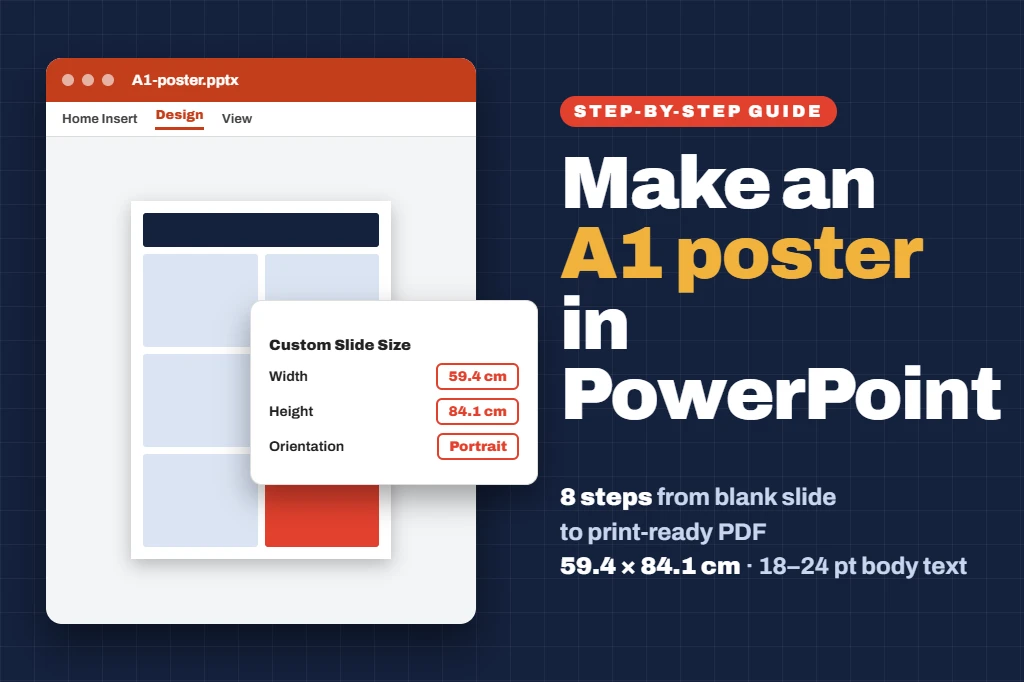
An A1 poster is 594 × 841 mm, which is 59.4 × 84.1 cm or 23.4 × 33.1 inches. Open a blank presentation and change the size before you add any text or images, because resizing later can stretch or crop your content.
| Orientation | Width | Height |
|---|---|---|
| A1 portrait (most common) | 59.4 cm | 84.1 cm |
| A1 landscape | 84.1 cm | 59.4 cm |
- Windows: Design > Slide Size > Custom Slide Size. Type 59.4 cm for width and 84.1 cm for height, then click OK.
- Mac: Design > Slide Size > Page Setup. Enter the same width and height, then click OK.
- PowerPoint for the web: sizes are in inches only, so enter 23.4 × 33.1 in.
If PowerPoint asks whether to Maximize or Ensure Fit (on a Mac, Scale or Don’t Scale), it does not matter on a blank slide. Custom slides can be up to 142.24 cm (56 inches) on each side, so A1 fits comfortably at its real size (Microsoft Support).
Short cut: download our free A1 PowerPoint poster template. It is already set to the exact A1 size with a 2-column layout and readable text sizes. No sign-up needed.
02 / 08Check the orientation
Most UK conferences and departmental events ask for portrait, but some poster boards are landscape. Always check the presenter guidelines before you start, because changing orientation later means rebuilding the layout.
Not sure whether you need A1 or A0? See A0 vs A1 conference posters, our list of UK conference poster sizes and landscape vs portrait posters.
03 / 08Plan a 2-column layout
On A1, two columns usually work best. They give each figure enough room and keep lines of text short. Leave a margin of about 1.5–2 cm around the edge, and plan your sections before writing.
- Top: title, authors, affiliations and logos
- Left column: background, aims and methods
- Right column: results (the biggest section) and conclusions
- Bottom: references, acknowledgements and a QR code
Turn on View > Guides to line up your boxes, and keep the same gap between every section. For what goes in each part, see what to include on a research poster.
04 / 08Use A1 font sizes
Text that looks fine on your laptop can be too small on a poster board. These sizes come from our academic poster font size guide:
| Element | A1 font size |
|---|---|
| Title | 60–72 pt |
| Authors and affiliations | 28–36 pt |
| Section headings | 28–36 pt |
| Body text | 18–24 pt (never below 18 pt) |
| Captions and references | 14–16 pt |
Stick to one or two clear fonts, such as Arial, Calibri or Helvetica, and keep the whole poster to a few hundred words.
05 / 08Add images and charts at full quality
- Use Insert > Pictures with the original files, not screenshots or images copied from a web page.
- Aim for about 300 DPI at the size the image will print. A photo that is 15 cm wide on the poster needs to be roughly 1,800 pixels wide.
- Paste charts from Excel as charts, or insert them as SVG or PDF where you can, so they stay sharp at any size.
- Do not stretch small images to fill a space. If it looks soft at 100% zoom, it will look soft in print.
More on pixels and sizes in our poster DPI guide.
06 / 08Turn off image compression
PowerPoint can shrink images to keep files small. Turn this off before you add your pictures.
- Windows: File > Options > Advanced. Under Image Size and Quality, tick Do not compress images in file and check the default resolution is High fidelity. The setting applies to the open file only (Microsoft Support).
- Mac: Microsoft does not list the same tick box for PowerPoint for Mac. If pictures look soft, use File > Compress Pictures and choose the highest option in the Picture Quality list (Microsoft Support).
07 / 08Check it at real size
Zoom to 100% and scroll around the whole poster, looking for blurry images, text boxes that run over, and anything closer than 1.5 cm to the edge. For a quick reality check, print one section at 100% on A4, pin it up and read it from about two metres away.
Common mistakes to avoid
- Designing on the default 16:9 slide and resizing at the end
- Using screenshots of charts or tables instead of the originals
- Body text below 18 pt
- Text or logos placed right at the edge of the slide
- Sending the .pptx file instead of a PDF
Then run through our academic poster checklist.
08 / 08Export a PDF and print
WINDOWSCreate PDF/XPS
- File > Export > Create PDF/XPS Document > Create PDF/XPS.
- Under Optimize for, choose Standard (publishing online and printing), not Minimum size.
MACExport as PDF
- File > Export, and choose PDF as the file format.
- Quality is set in PowerPoint > Preferences > General > Print Quality (Paper/PDF). Keep it on High.
Steps from Microsoft Support. Open the PDF and check that the page size shows as 594 × 841 mm and that nothing has moved. Send the PDF, not the .pptx file, so your fonts and layout stay exactly as you designed them.
Already made the poster at A0? A0 and A1 have the same shape, so an A0 design shrinks to A1 without cropping. Everything becomes about 71% of its size, though, so 24 pt body text on A0 prints at roughly 17 pt on A1, slightly below our recommended minimum. If you know the poster will be A1, design it at A1 from the start. Our guide to printing a PowerPoint poster at A0 covers the larger size.
Upload your PDF on our A1 poster printing page and choose satin or matte paper. A1 poster printing is £29.99 with free UK delivery.
Orders paid for before 12PM, Monday to Friday, are printed the same day. Then choose your delivery:
| Standard | Free · 2–3 working days |
| Royal Mail Tracked 24 & Signed | £6.99 · usually 1–2 working days |
| DPD Next Day | £9.99 · next working day |
| Royal Mail Special Delivery | £12.99 · next working day by 1PM |
Frequently asked questions
What size is A1 in PowerPoint?
Set the slide to 59.4 × 84.1 cm for portrait or 84.1 × 59.4 cm for landscape. That is 594 × 841 mm, or 23.4 × 33.1 inches.
Can I make an A1 poster in Google Slides or Canva instead?
Yes. The same size and font rules apply. See our guides to making a poster in Google Slides and making a poster in Canva, and use 59.4 × 84.1 cm instead of the A0 size.
What font size should an A1 poster be?
Use 60–72 pt for the title, 28–36 pt for headings, 18–24 pt for body text and 14–16 pt for captions and references.
What file should I send to print an A1 poster?
A PDF exported at the full A1 size. PDF keeps your fonts and layout fixed, while a .pptx file can change on another computer.
Can I print an A0 PowerPoint poster at A1?
Yes, A0 and A1 have the same shape, so nothing is cropped. Everything shrinks to about 71%, so 24 pt body text becomes about 17 pt, which is slightly small for A1.
Sources and further reading
- Change the size of your PowerPoint slidesMicrosoft Support: menus and the 56 in (142.24 cm) limit
- Turn off picture compressionMicrosoft Support
- Save PowerPoint presentations as PDF filesMicrosoft Support: Windows and Mac
- What Font Size Should an Academic Poster Be? (A0 and A1)Our guide, with an A4 test for your text
